Section breaks in Microsoft Word can be as frustrating as they are essential, often leading to unexpected formatting issues that disrupt the flow of your document. Understanding how to remove section breaks in Word is crucial for anyone looking to maintain a polished and professional appearance in their writing.
What is a section break?
Mastering section breaks in Microsoft Word not only enhances the organization of your document but also allows for creative formatting options that can elevate your content. For instance, if you’re working on a lengthy report, you might want to change the layout for specific chapters — perhaps shifting from a single-column format to multiple columns for a data-heavy section.
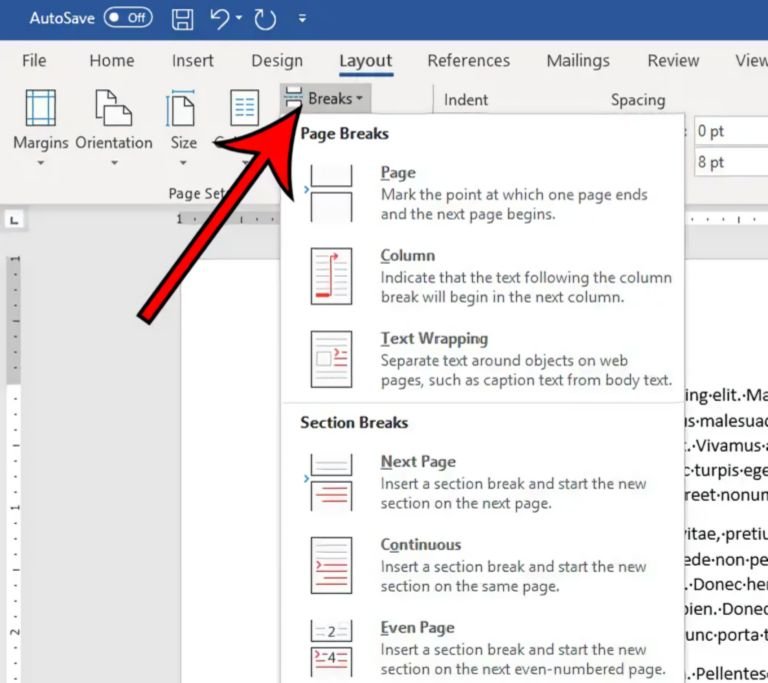
This flexibility enables you to tailor each part of your document to its unique needs, making it more reader-friendly and visually appealing.
Why would you remove a section break?
Section breaks can be invaluable for crafting visually appealing layouts in documents like resumes, newsletters, and advertisements. However, there are instances when removing them becomes essential.
One significant reason to consider this is to streamline your document’s size. By eliminating unnecessary section breaks, you not only reduce file size but also enhance loading times, making it easier to share or upload your work.Moreover, removing section breaks can help you achieve a more cohesive and consistent formatting style throughout your document.
If you’re in the process of making general edits or updating content, having fewer breaks allows for smoother transitions between sections. This ensures that your reader’s experience is uninterrupted and engaging.
How to remove section breaks in Word for Windows
When you’re looking to streamline your document, knowing how to remove section breaks in Word for Windows can be a game-changer. Section breaks can sometimes create unwanted formatting issues or disrupt the flow of your text. Fortunately, there are several straightforward methods to eliminate these breaks and enhance your document’s readability.
Delete a section break
To effectively remove section breaks in Word for Windows, start by opening your document and navigating to the menu ribbon at the top of the screen. This is where the magic begins. Click on “Home,” and then select “Show/Hide ¶” to reveal all invisible formatting marks, including section breaks that can clutter your workspace. With these markers visible, you can easily identify the section break you wish to eliminate.
Next, position your mouse cursor right before the section break you want to delete. A simple press of the “Delete” key on your keyboard will remove it instantly, streamlining your document’s formatting. Once you complete this action, you’ll notice a smoother flow in your text, allowing for seamless transitions between sections.
Delete all section breaks at once
If you’re looking to streamline your document by removing section breaks in Word for Windows, there’s an efficient method to do so in bulk. Start by opening your document and navigating to the menu ribbon at the top of the screen. Click on the “Home” tab, then find the “Replace” option nestled within the “Find and Select” dropdown. This action will bring up a dialog box that simplifies your task.
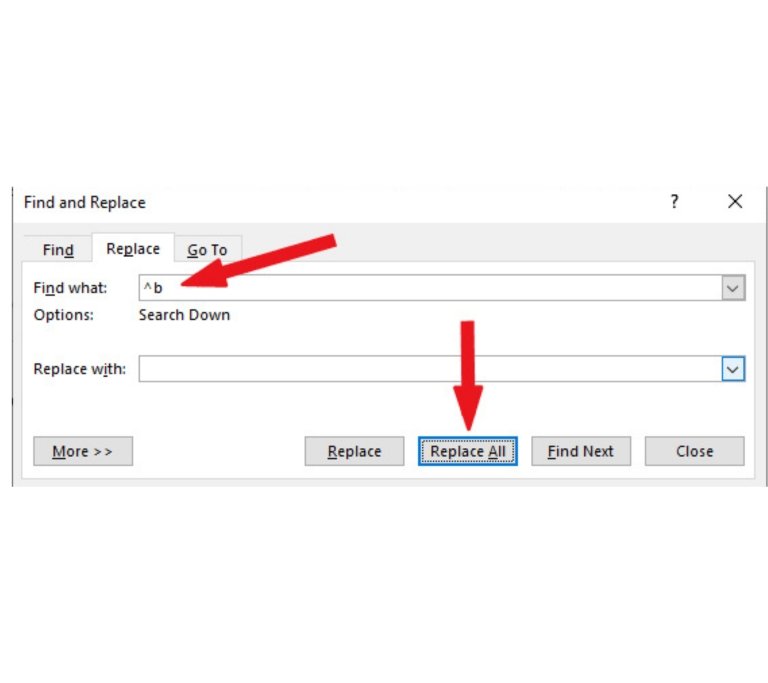
In the “Find what:” field, type “^b” to target all section breaks. It’s crucial to leave the “Replace with:” field empty, ensuring that no additional characters interfere with your formatting. With just a click on the “Replace All” button, you can eliminate every section break throughout your document in one swift motion.
How to remove section breaks on a Mac
When you want to streamline your Word document on a Mac, knowing how to remove section breaks can significantly enhance your layout and readability. While the process mirrors that of Windows, the Mac computer interface offers unique features that can simplify your editing experience.
Delete a section break
To remove a section break in Word on your Mac, start by opening your document and navigating to the menu ribbon at the top of the screen.
Click on the “Home” tab, then select the “¶” icon to reveal all non-printing characters, which makes it easier to identify section breaks within your text. Once you’ve located the specific section break you want to eliminate, simply click on it to highlight.
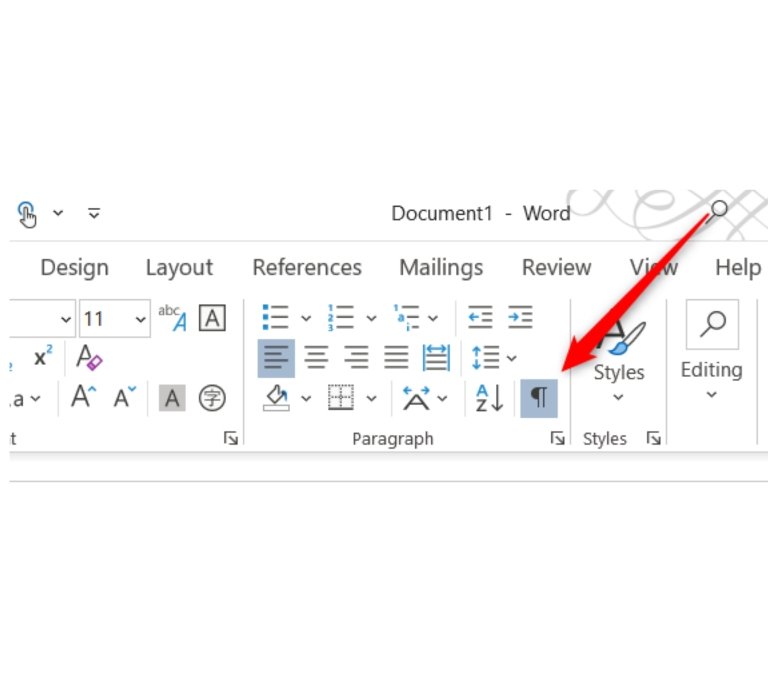
After highlighting the section break, press the “Delete” key on your keyboard. This action will remove only the selected break without affecting the surrounding content. If you find yourself dealing with multiple section breaks and wish to streamline your document further, consider using the “Find” feature (Command + F) to quickly locate and delete them all at once.
Delete all section breaks at once
To effectively remove all section breaks in your Word document on a Mac, start by launching Microsoft Word and opening the file you wish to modify. Navigate to the menu bar at the top of the screen, where you’ll find the “Edit” option. From the drop-down menu, select “Find” and then “Replace.” Alternatively, you can quickly access this feature by pressing “Command” and “H” on your keyboard.
Once the “Replace” dialog box opens, enter ^b in the “Find what:” field. It’s crucial to leave the “Replace with:” field empty — this ensures that any section breaks found will be completely removed without leaving any unwanted gaps. Finally, click the “Replace All” button to eliminate all section breaks in one swift action.
Conclusion
Mastering the process of how to remove section breaks in Word can significantly enhance your document’s layout and overall presentation. By following the steps outlined in this article, you can easily navigate through your sections and eliminate any unwanted breaks that disrupt the flow of your text.
Whether you’re preparing a formal report or a creative project, having control over your document’s structure is essential. Remember to save your work frequently as you make these adjustments to avoid any loss of content.
FAQs
What is a section break in Word?
A section break is a formatting tool that divides your document into sections, allowing for different layouts, headers, footers, and page numbering within the same document.
How can I identify section breaks in my Word document?
You can view section breaks by enabling the “Show/Hide ¶” feature in the Home tab, which will display all formatting marks, including section breaks.
What are the different types of section breaks in Word?
There are four types of section breaks: Next Page, Continuous, Even Page, and Odd Page, each serving different layout purposes.